How to Run OpenClaw on a $100 set-up
Key Takeaways
- Think of OpenClaw as the operating system for your AI assistant: the model is the brain, while OpenClaw handles memory, tools, permissions, and execution flow.
- You do not need a high-end machine to start. A Raspberry Pi plus disciplined model routing can run a capable personal AI setup at a fraction of the common hype-stack cost.
The Simpler Starting Point
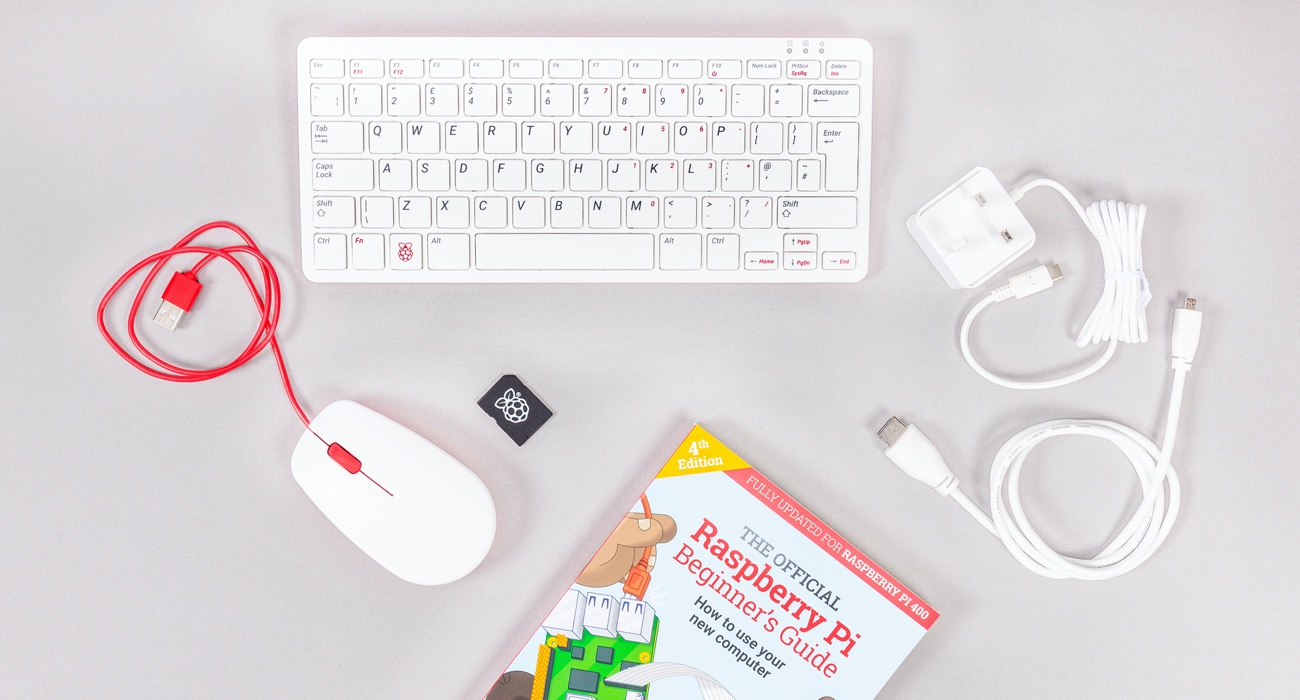
OpenClaw is gaining traction fast, but most YouTube setups jump straight to a Mac mini ($599). You don't need that. A Raspberry Pi runs an effective setup for under $100 in under 15 minutes (or repurpose an old laptop by wiping it clean and flashing Linux.)
Source: RaspberryPi
What this guide covers
- What is OpenClaw
- Cost Reality Check
- A beginner-friendly OpenClaw setup path.
- A realistic cost model for monthly usage.
- A model-routing strategy to control token spend.
What is OpenClaw
OpenClaw is a software layer that turns a large language model into an operational assistant with tools, memory files, and guardrails. It orchestrates instructions, context files, and actions so the assistant can do real work instead of only chat. Your project data and behavior files live in your local workspace, and you decide what external APIs or services the assistant can access.
Cost reality check
Hardware is usually a one-time expense. In practice, API spend becomes the main operating cost. That means model choice and routing matter more than buying premium hardware too early.
- Starter hardware usually lands around $70 to $120 depending on board, storage, and accessories. I recommend Raspberry Pi 400 (4GB RAM + 16GB MicroSD) priced at ~$90.
- Monthly API spend can stay under $20 with disciplined routing and guardrails.
- Premium-only model usage can increase monthly cost very fast.
Step 1: Flash Raspberry Pi OS Lite (64-bit)
Flashing means writing the operating system image onto your microSD card so the Raspberry Pi can boot.
Quick steps:
- Insert microSD card into laptop.
- Download Raspberry Pi Imager from Official website.
- Open Imager, choose device and Raspberry Pi OS Lite (64-bit).
- Open advanced settings and set Wi-Fi, username/password, and enable SSH.
- Select storage and click Write.
- Safely eject the card. Your boot media is now ready.
Step 2: Connect headless via SSH
ssh <username>@<device-name>.local
Example: ssh pi@raspberrypi.local
Step 3: Install OpenClaw
After SSH login, run the latest Linux install command from the official OpenClaw docs, as of 3/11/2026 it is
curl -fsSL https://openclaw.ai/install.sh | bash
Step 4: Navigating the installation process
Terminal setup can feel intimidating at first, and that is normal. Just follow each command step by step and ask your preferred AI assistant whenever you get stuck. There are plenty of YouTube walkthroughs that can help you unstick quickly. For a smoother onboarding experience, I recommend starting with Anthropic even if it costs a bit more upfront.
LLM Model Routing Strategy
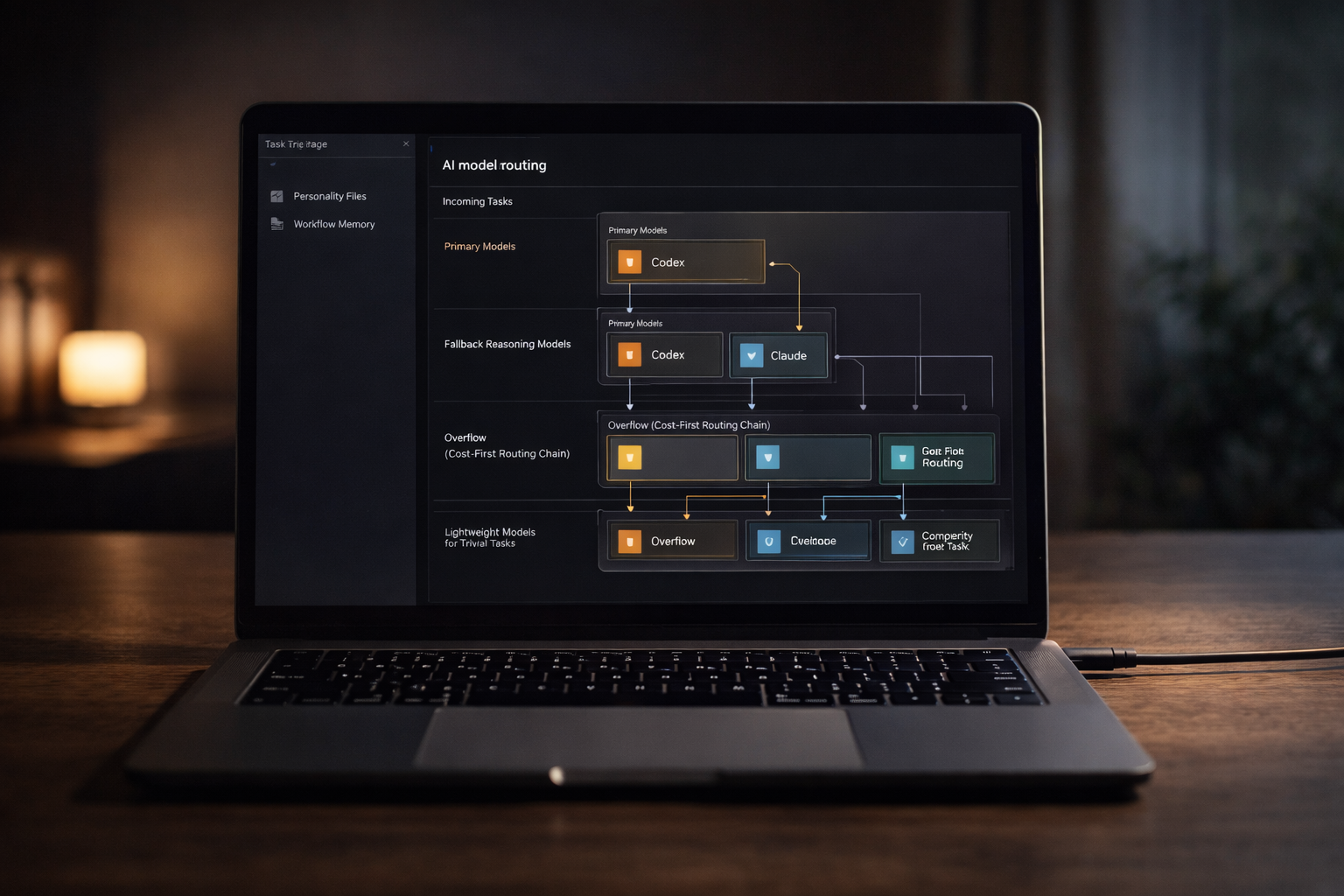
Image Source: ChatGPT
- Primary models: OpenAI Codex and Anthropic Claude (Sonnet/Opus), switching by task complexity and budget.
- Fallback to stronger reasoning models for harder tasks.
- Overflow path through OpenRouter with a cost-first chain.
- For trivial tasks, GPT mini and Gemini Flash class models are excellent value for summarizing, cleanup, and lightweight drafting.
In long-run usage, personality and workflow files carry most continuity. Swapping models is often an incremental quality/cost upgrade, not a full reset.